


Invite team members to your SleekFlow workspace so they can access conversations, manage customers, and collaborate with the right role and team setup.
Users can be invited by email or through an invitation link. When sending an invitation, admins can assign the user’s role and add them to a team, so their access and routing setup are ready when they join
Only users with an Admin role can invite users to a workspace.
The number of users you can invite depends on your subscription plan. If your workspace has reached its seat limit, you may need to remove inactive users or upgrade your plan before inviting more users.
Invite users to your workplace
To invite a new user, you can follow these two methods:
-
Click the
 icon in the navigation bar at the bottom of the screen
Or
-
Go to the Settings by clicking the
icon in the navigation bar
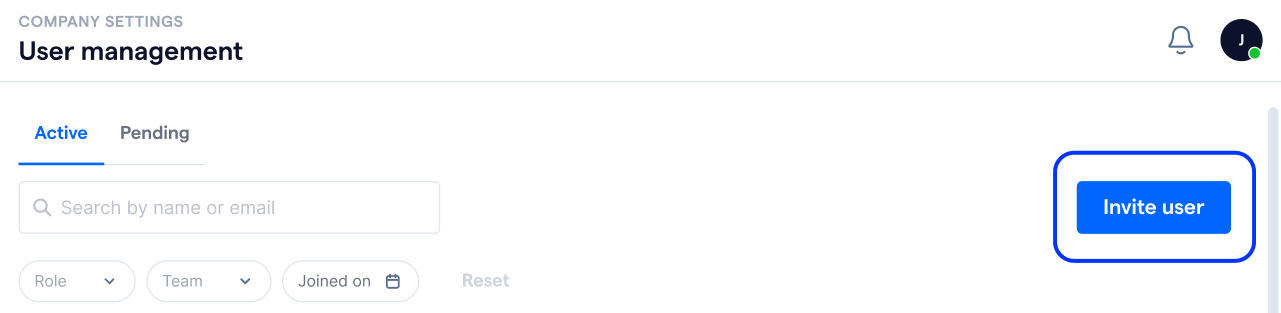
- Under “Company settings”, select “User management”
- Select “Invite user”
In the “Invite team member” popup that appears, you have 2 options:
- Invite by email
-
Invite with link
Invite users by email
To invite users by email:
- In the Invite team member popup, select the “Invite by email” tab
- Enter the email addresses of the users you want to invite
- Select the role to assign to the users
- Select the team they should be added to (Optional)
- Select “Invite”
Email invitations are valid for 7 days. If the invitation expires, the invitee will need a new invitation before they can join the workspace.

Invite users with link
Use invitation links when you want multiple users to join with the same role and team setup.
To create an invitation link:
- In the “Invite team member” popup, select the “Invite with link” tab
- Select the role to assign to users who join through this link
- Select the team these users should be added to (Optional)
- Choose how long the invitation link should remain valid:
- 3 days
- 7 days
- 14 days
- 30 days
- Once the link is generated, click the
 icon to copy invite link
- Share the link with the users you want to invite

Users must click the link and follow the instructions to complete the sign-up process within the invitation's validity period.
What new users see after joining
After creating an account, new users may see a welcome screen before entering the main workspace.
The welcome screen helps them understand how they have been set up in the workspace, including:
- The workspace they joined and who invited them
- Their assigned role and what they can access
- Their assigned team and teammates, if any
- Whether they can receive conversations through assignment rules
FAQs
-
How many users can I invite?
The number of users you can invite depends on your subscription plan.
You can view the number of remaining seats in the invite dialog. If your workspace has reached its seat limit, you can remove inactive members from “User management” to free up seats, or upgrade your plan to add more users.
-
Can I invite someone who already has a SleekFlow account?
Yes. If the person already has a SleekFlow account in another workspace, they can still accept your invitation and join your workspace. If the email address already belongs to a member of your current workspace, the invite dialog will show an error message.
-
Why is the invite button disabled?
The invite button is disabled when your workspace has reached its seat limit. To invite more users, remove inactive members from “User management” or upgrade your plan from the billing page.